Connect Selfmade Ninja Labs MCP to ChatGPT & Claude
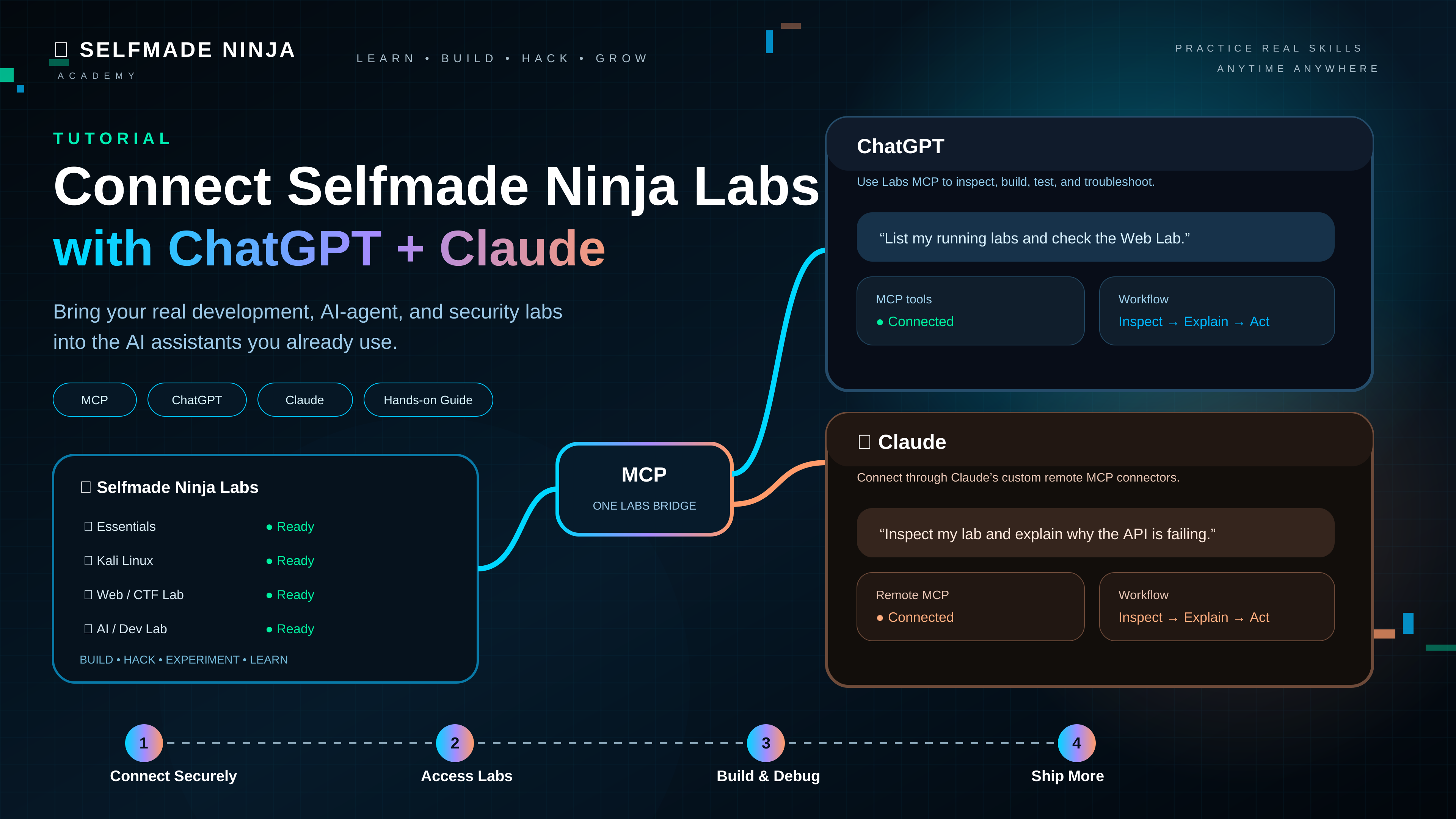
Selfmade Ninja Labs can be connected to ChatGPT and Claude through the Model Context Protocol (MCP). Both AI assistants can connect to the same remote Labs MCP service, allowing them to work with the authorized state of your development, cybersecurity, AI-agent, and infrastructure labs.
This guide puts both connection paths in one place, then shows how to use Labs MCP effectively and safely.
What You Need
- An active Selfmade Ninja Labs account.
- Access to ChatGPT or Claude on a supported surface.
- A ChatGPT plan/workspace that supports custom MCP apps/developer mode, or a Claude plan/workspace that supports custom remote MCP connectors.
- An internet connection that can reach the remote Labs MCP service.
- The Selfmade Ninja Labs MCP endpoint:
https://labs.selfmade.ninja/mcpWhat Is MCP?
Model Context Protocol (MCP) is an open standard that lets AI applications such as ChatGPT and Claude connect to external tools and data through a structured, permission-controlled interface.
Think of MCP as a bridge between an AI client and Selfmade Ninja Labs. ChatGPT and Claude are different MCP clients, but both can connect to the same remote Labs MCP service:
One protocol · two AI clients · one Labs environment
The MCP connection at a glance
REMOTE MCP
→
→
→
Without MCP, ChatGPT or Claude can explain how to use a lab, but they cannot directly access the information exposed by Labs. With MCP, the connected AI client can discover the tools provided by the Labs MCP server and use the appropriate tool when your request requires it.
The important point is that MCP is not a ChatGPT-only or Claude-only technology. It is an open protocol. Selfmade Ninja Labs exposes one remote MCP endpoint, and compatible clients such as ChatGPT and Claude can connect to it using their own connection and authorization flows.
The important idea: MCP does not give ChatGPT or Claude unrestricted access to your account. The MCP server defines the tools and capabilities that are exposed, while Labs authorization and the AI client's permissions determine what can actually be used.
Why Connect Labs MCP to ChatGPT or Claude?
Connecting Labs MCP is useful when you want ChatGPT or Claude to work with the real state of your lab environment instead of relying on information you manually copy into the conversation.
- List your deployed labs.
- Check whether a lab is currently available.
- Inspect a lab's connection information.
- Check your domains and identify which lab is using them.
- Review WireGuard networks and registered devices.
- Inspect available services and databases.
- Help troubleshoot a failed lab deployment.
- Inspect project files and explain their structure.
- Perform approved multi-step workflows using several Labs tools.
The biggest productivity gain comes from combining natural-language intent with structured tools exposed by MCP.
What Can You Actually Build With Labs MCP?
Labs MCP is not limited to checking whether a lab is running. The bigger idea is to give an AI assistant a practical, authorized interface to a real development environment. That makes Selfmade Ninja Labs useful for application development, cybersecurity, AI-agent engineering, infrastructure work, automation, and hands-on learning.
Build and ship applications
Use ChatGPT or Claude together with your lab as an engineering workspace. You can inspect an existing project, understand its architecture, create or modify application files when permitted, run the application, inspect failures, and iterate toward a working result.
- Build web applications, APIs, CLI tools, automation scripts, and backend services.
- Inspect an unfamiliar codebase and explain its architecture.
- Debug build failures, dependency problems, runtime errors, and service issues.
- Run tests and verify that a change actually works.
- Work with Git repositories and keep development changes inside the lab environment.
Cybersecurity and ethical hacking
Labs MCP can make a security lab much more interactive. With an authorized target and an appropriate lab, ChatGPT or Claude can help you prepare methodology, inspect your environment, analyze tool output, troubleshoot security tooling, build scripts, and document findings.
- Prepare reconnaissance and enumeration workflows for systems you are authorized to test.
- Build and debug security utilities, scanners, parsers, and CTF tooling.
- Analyze logs, network information, service configurations, and captured results.
- Reproduce vulnerabilities inside controlled labs and validate defensive fixes.
- Develop CTF challenges and supporting infrastructure.
- Turn raw technical evidence into structured vulnerability reports.
Security boundary: Use these capabilities only against systems and targets you are authorized to assess. MCP provides a connection to your lab; it does not make an unauthorized target permissible.
Develop and test AI agents
Labs can also serve as a practical environment for AI-agent development. Build agents that interact with APIs, files, databases, command-line tools, or other services inside a controlled environment, then test their behavior and iterate quickly.
- Prototype tool-using AI agents.
- Build agent backends and API services.
- Test agent workflows against realistic files, services, and network conditions.
- Debug agent failures by inspecting the actual runtime environment.
- Experiment with orchestration, tool calling, RAG pipelines, and automation.
Infrastructure and DevOps workflows
Because the MCP connection can work with the state of your Labs environment, it can also help with operational engineering.
- Inspect services, ports, processes, domains, and deployment state.
- Diagnose why an application or service is unavailable.
- Review configuration before a deployment.
- Automate repeatable development tasks where permitted.
- Verify that a deployment produced the expected result.
Learn by doing
For students and practitioners, this creates a powerful learning loop: ask → inspect → experiment → observe → explain → repeat. Instead of only reading how Linux, networking, programming, security, or AI systems work, you can use a real lab and ask ChatGPT or Claude to help you understand what is happening as you work.
The key advantage
The important distinction is that your AI assistant is not merely generating instructions for you to copy. When the required permissions are available, it can work with the actual state of your lab. That means explanations can be grounded in real files, processes, services, configurations, and tool results rather than assumptions.
Think of the combination like this:
1. Connect Labs MCP to ChatGPT
MCP apps are currently available through the ChatGPT web experience. Open ChatGPT in your browser and sign in to the account or workspace where you want to connect Labs.
Availability can vary: OpenAI's MCP capabilities and interface are evolving. OpenAI currently documents full MCP support, including write/modify actions, as a beta capability for Business, Enterprise and Edu plans. Availability, permissions, supported actions, and interface labels can vary by plan and workspace. Custom MCP apps are web-only.
Enable Developer Mode
If your account or workspace provides Developer Mode, enable it before creating the custom MCP app.
In the current ChatGPT interface, the setting may be available under:
Settings → Security and login → Developer modeSome workspace configurations expose Developer Mode through workspace or app administration instead. Older interfaces may show it under Settings → Apps → Advanced Settings. If you cannot see Developer Mode, the Labs endpoint is not necessarily the problem; your plan, role, workspace policy, or rollout may determine whether the feature is available.
Create the Selfmade Ninja Labs MCP app
- Open the ChatGPT web interface and go to the area where your account exposes Apps or Plugins.
- Use the option to create/add a custom app or MCP connection.
- Enter a clear name, for example Selfmade Ninja Labs.
- For the MCP server URL, enter:
https://labs.selfmade.ninja/mcp- Provide the requested metadata or description.
- Choose the authentication mechanism supported by the Labs endpoint. If OAuth is offered, use OAuth rather than sharing your Labs password in a prompt.
- If ChatGPT offers Scan tools or an equivalent tool-discovery step, run it and complete OAuth authorization when prompted.
- Review the trust and permission warnings, then select Create or the equivalent confirmation.
Current UI note: Start with Settings → Security and login → Developer mode when that setting is exposed to your account. The exact creation and app labels can vary by rollout and workspace.
Verify ChatGPT
List my Selfmade Ninja Labs and tell me which ones are currently deployed.
Then try:
Show me the connection information for my Essentials lab. Do not change anything.
2. Connect Labs MCP to Claude
Claude supports remote MCP servers through custom connectors. Anthropic's current documentation places custom connector management under Customize → Connectors for individual accounts. Custom remote MCP connectors are available on Claude, Cowork, and Claude Desktop for Free, Pro, Max, Team, and Enterprise plans; Free users are limited to one custom connector.
The same Labs MCP endpoint works for both. You do not need a second Selfmade Ninja Labs server for Claude. Use the same remote endpoint:
https://labs.selfmade.ninja/mcpChatGPT and Claude are simply two different MCP clients connecting to the same authorized Labs MCP service.
Claude Pro or Max
- Open Claude on the web.
- Go to Customize → Connectors.
- Click the + button next to Connectors.
- Select Add custom connector.
- Enter Selfmade Ninja Labs as the connector name.
- Enter:
https://labs.selfmade.ninja/mcp- If needed, open Advanced settings and provide an OAuth Client ID and OAuth Client Secret.
- Click Add and complete the authentication flow.
After connecting, enable the connector for a conversation from the + menu → Connectors.
Claude Team or Enterprise
An Owner or Primary Owner must add the custom connector for the organization first:
- Go to Organization settings → Connectors.
- Click Add.
- Choose Custom → Web.
- Enter the Selfmade Ninja Labs MCP URL.
- If required, use Advanced settings to provide the OAuth Client ID and Client Secret.
- Click Add.
Members can then go to Customize → Connectors, find Selfmade Ninja Labs, and click Connect to authenticate their own account.
Enable Claude's Labs tools in a conversation
- Click the + button in the lower-left of the Claude chat composer.
- Open Connectors.
- Enable Selfmade Ninja Labs.
- Start with a read-only request.
List my deployed Selfmade Ninja Labs and tell me which ones are currently available.
Then try:
Inspect my Essentials lab and explain the current service state. Do not change anything.
Claude network requirement
Anthropic's remote MCP connector architecture connects to your MCP server from Anthropic's cloud infrastructure, not directly from your laptop. Your server therefore needs to be reachable over the public internet from Anthropic's infrastructure. A server available only on localhost, a private LAN, or a VPN will not work as a normal custom remote connector unless the required network access is provided.
The public Labs endpoint https://labs.selfmade.ninja/mcp is designed to be remotely reachable, so it is suitable for this connector model.
Claude security: Anthropic warns that custom connectors can access and potentially modify data through the tools they expose. Review OAuth scopes, connector permissions, and tool approvals carefully. Remote MCP servers can also carry prompt-injection risks. Connect only to MCP servers you trust.
3. Authorize and Verify the Connection
Both clients use the same principle: authenticate the Labs connection through the provider's supported authorization flow and start with read-only requests.
Do not paste your Selfmade Ninja Labs password, SSH private key, WireGuard private key, API tokens, or recovery codes into ChatGPT or Claude merely to connect MCP.
Protect your credentials: MCP is a controlled tool connection, not a reason to expose long-lived secrets in a conversation. Prefer OAuth and delegated authorization where supported, and review the permissions requested before approving access.
ChatGPT verification
List my Selfmade Ninja Labs and tell me which ones are currently deployed.
Claude verification
List my deployed Selfmade Ninja Labs and tell me which ones are currently available.
If the assistant retrieves current state from Labs instead of giving a generic explanation, the MCP connection is functioning.
4. Ask for Outcomes, Not Tool Names
You do not normally need to tell ChatGPT or Claude which internal MCP function to call.
Instead of:
Call
list_labs.
Prefer:
Check my Selfmade Ninja Labs and tell me which machine labs are currently deployed.
The connected assistant can determine which available tool is appropriate for the request. This keeps your prompts easier to understand and independent from internal tool names that may change.
5. Give Your AI Assistant Enough Context
Good MCP prompts contain three things:
- The goal — what you want to achieve.
- The scope — which lab, project, domain, or resource is relevant.
- The safety boundary — whether ChatGPT or Claude should inspect, propose a change, or actually perform an action if permitted.
For example:
Inspect my Essentials lab. Find the project currently serving on port 80, explain its structure, and do not modify any files.
Or:
Check why my lab is unavailable. Inspect the lab status and logs first. Do not redeploy it unless I explicitly approve the fix.
6. Use Inspect → Explain → Propose → Execute
For important changes, use a staged workflow.
Step 1 — Inspect
Inspect my lab and identify the current problem. Do not make changes.
Step 2 — Explain
Explain the likely cause, the evidence you found, and what would need to change.
Step 3 — Propose
Give me the safest fix, the files or settings that would change, and any possible side effects.
Step 4 — Execute
Apply the proposed fix. Before changing anything, re-check that the target is the same lab and that no unrelated configuration will be overwritten.
This workflow is especially valuable for production-connected resources.
7. Useful Prompts for Labs MCP
Lab Management
List my labs and summarize their current status.Check my Essentials lab. If it is stopped or failed, tell me why before doing anything.Troubleshooting
My lab is not responding. Inspect its status, processes, listening ports, and recent logs. Give me a diagnosis without changing anything.Domains and HTTPS
List my domains and show which lab each active domain is attached to. Flag any certificate or routing problem you find.Project Inspection
Inspect my lab workspace and identify all project directories. For each project, tell me its language/framework and Git status.Safe Code Changes
Inspect the project first. Explain the required change, then wait for my approval before editing any files.Multi-Step Investigation
Investigate this issue end to end. Start with read-only inspection, identify the root cause, propose a fix, and only execute the fix after I approve it.8. Make Your Prompts More Precise
| Less precise | Better |
|---|---|
| Fix my lab | Inspect my Essentials lab, identify the failure, and propose a fix without changing anything. |
| Check my server | Inspect the lab status, processes, listening ports, and recent logs. |
| Update the app | Inspect the repository and tell me exactly which files need to change. Wait for approval before editing. |
| Deploy it | Confirm the target lab, current configuration, and expected impact before deploying. |
| Delete the old domain | Identify the domain and the lab using it. Do not delete anything until I confirm. |
9. Let ChatGPT or Claude Use Multiple Labs Tools
MCP becomes significantly more useful when a task requires several pieces of information.
Check why my website is returning an error. First identify the lab serving it, then inspect the lab status, listening ports, and relevant logs. Compare the evidence and give me the most likely root cause. Do not modify anything.
A strong workflow is:
Labs MCP · Operating model
A safer path from request to result
Use the same evidence-first workflow with ChatGPT or Claude. Changes happen only after the scope and action are clear.
-
01
Start
User request
State the outcome you want and include the relevant lab, project, service, domain, or other scope.
-
02
Discover
Identify the relevant resource
Let ChatGPT or Claude determine which connected Labs resource is actually relevant to the request.
-
03
Observe
Read current state
Inspect the live state before forming a diagnosis: status, configuration, files, processes, ports, domains, or other relevant data.
-
04
Evidence
Collect supporting evidence
Gather the additional logs, command output, metadata, or configuration details needed to distinguish symptoms from the root cause.
-
05
Reason
Reason over the evidence
Compare the evidence, explain the likely cause, and separate verified facts from assumptions or uncertainty.
-
06
Plan
Propose the next action
Present the smallest sensible fix or next step, including what will change, why it is needed, and any expected side effects.
-
07
Control point
Request approval when a change is needed
Pause before write, deploy, delete, routing, or other consequential actions. The user reviews and approves the proposed change.
Approval gate · No approval, no consequential change. -
08
Finish
Perform the approved action
Execute only the approved scope, make the smallest necessary change, and avoid unrelated modifications.
-
09
Verify
Verify the result
Re-check the resulting state and confirm that the intended outcome was achieved without introducing a new problem.
10. Read-Only Versus Write Actions
Not every MCP operation has the same risk.
Read-only operations
These retrieve information without changing your environment, such as checking lab status, reading files, inspecting domains, and reviewing logs. They are ideal for diagnosis and exploration.
Write or modify operations
These can change your environment, such as editing files, deploying a lab, changing routing, deleting resources, or modifying configuration.
For important changes, ask ChatGPT or Claude to explain the intended change first. Depending on the app configuration and action, ChatGPT or Claude may request confirmation before performing a write operation.
Production rule: Treat an MCP-connected production environment exactly like any other production system: inspect first, make the smallest necessary change, and verify the result afterwards.
11. MCP Does Not Replace Authorization
Connecting Labs MCP does not mean ChatGPT or Claude can bypass Selfmade Ninja Labs permissions.
The Labs platform still determines which account is authenticated and which resources that account can access. ChatGPT or Claude can only work with the capabilities exposed through the MCP connection and permitted by the current app/workspace configuration.
PERMISSION MODEL
Effective access is layered
No single layer grants unrestricted control.
+
+
12. Security Best Practices
- Connect only to the official Labs MCP endpoint.
- Use OAuth or the supported authorization flow instead of placing passwords in prompts.
- Review the tools exposed by a custom MCP app before enabling it.
- Prefer read-only inspection before write operations.
- Ask ChatGPT or Claude to identify the target resource before destructive actions.
- Never paste SSH private keys or WireGuard private keys into a chat.
- Do not give a prompt more access than the task requires.
- Review changes before applying them to production resources.
- After a write operation, verify the resulting state.
- If an MCP server or app is unfamiliar, do not connect it merely because it claims to be compatible with Labs.
OpenAI also warns that connecting to unsafe or untrusted MCP servers can introduce security risks, including prompt injection. Treat a custom MCP connector as software with privileges, not as a harmless browser extension.
13. Troubleshooting
The MCP app does not appear
- Make sure you are using ChatGPT or Claude on the web.
- Confirm Developer Mode is enabled when required.
- Check that your plan/workspace supports the required MCP capability.
- Check whether your workspace administrator has blocked custom apps.
Tool scanning fails
Check that the endpoint is exactly:
https://labs.selfmade.ninja/mcpThen retry the tool scan and complete the authorization flow if requested.
Authorization keeps expiring
If the MCP connection uses OAuth, the identity provider must support the token lifecycle required by ChatGPT or Claude. Reauthorization may be necessary if the authorization was not configured for long-lived connectivity.
ChatGPT or Claude says a tool is unavailable
The app may not expose that capability to your current account, or the action may not be enabled in your workspace. Check the app's available actions and permissions rather than assuming the Labs service is broken.
A tool call fails after the MCP app was updated
Managed ChatGPT or Claude workspaces can use a reviewed or frozen snapshot of an app's available tools. If the MCP server's tool definitions change, an administrator may need to refresh and review the updated actions before they become available.
The Best Way to Think About Labs MCP
The most effective mental model is not:
“ChatGPT or Claude can control my lab.”
Instead:
“ChatGPT or Claude can reason about my lab using a controlled set of tools that I authorize.”
That distinction leads to better prompts, safer workflows, and fewer accidental changes.
Selfmade Ninja Labs gives you the environment. MCP gives ChatGPT or Claude a structured interface to that environment. Your job is to define the goal clearly, constrain the scope, review important changes, and verify the result.
Official Provider References
- OpenAI — Developer mode and MCP apps in ChatGPT
- OpenAI — Apps in ChatGPT
- Anthropic — Get started with custom connectors using remote MCP
- Anthropic — Use connectors to extend Claude's capabilities
Conclusion
Connecting Selfmade Ninja Labs MCP to ChatGPT or Claude turns a traditional cloud lab workflow into an interactive, tool-assisted development experience.
Once configured, you can move from manually collecting information and copying it into ChatGPT or Claude to asking questions against the live state of your Labs environment from the AI assistant you prefer. The real value, however, comes from using MCP deliberately: inspect first, reason over evidence, propose changes, execute only what is approved, and verify the result.
Start with simple read-only requests, learn what your Labs MCP exposes, and then gradually introduce more advanced workflows as you become comfortable with the permissions and safeguards.
Start Here
Connect the Labs MCP endpoint, verify it with a read-only request, and then try:
“Inspect my Selfmade Ninja Labs and give me a concise overview of everything I currently have running.”